Importing Contacts from Google Sheets into LeadsNavi
You can easily import leads into your Leadsnavi campaigns using Google Sheets.You can easily import leads into your Leadsnavi campaigns using Google Sheets.
- On the Homepage, click Add Contacts.
- Leadsnavi supports three import methods:
- Manual Entry
- Upload File
- Google Sheets
Step 2: Select Google Sheets
Choose Google Sheets as your preferred import option.
Step 3: Prepare Your Google Sheet
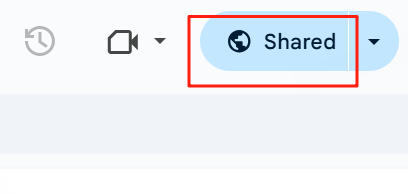
Set the sharing permission of your sheet to “Anyone with the link can view.”
Format Your Sheet Correctly
- Press Ctrl/Cmd + A to select all rows and columns.
- Go to Format → Number → Plain Text.
- Save your changes before importing.
💡 Tip:
Formatting your data as plain text ensures that Leadsnavi can read it correctly without formatting errors.
Step 4: Import the Google Sheet
- Copy and paste your Google Sheet URL into Leadsnavi.
- Leadsnavi will automatically detect columns and map them to fields.
- Make sure every contact has a valid email address — this is required.
- If any lead is missing an email or contains an invalid email format, Leadsnavi will alert you before proceeding.
- After submission, you can add tags to categorize your new contacts.
- Click Submit to complete the import process.
Step 6: Check Import Status
- Return to the Homepage.
- View the import status of your contacts in the Events panel on the right-hand side.
Related Articles
Contact Management in LeadsNavi
Leadsnavi is a powerful lead management platform designed for sales, marketing, and outreach teams. Here, you can easily complete the full workflow—from adding contacts and connecting email accounts to tracking automated tasks, helping you acquire ...
Importing Contacts via File Upload in LeadsNavi
You can easily import leads into your Leadsnavi campaigns using the Upload File method. Follow the steps below to complete the process: Step 1: Open “Add Contacts” On the Homepage, click Add Contacts. Leadsnavi supports three import methods: Manual ...
Importing Contacts Manually into LeadsNavi
You can easily add Contacts manually into your Leadsnavi campaigns. Follow the steps below to complete the process: Step 1: Open “Add Contacts” On the Homepage, click Add Contacts. Leadsnavi supports three import options: Manual Upload File Google ...
Enrich Contact in LeadsNavi
; Enrich is a powerful feature provided by Leadsnavi that automatically completes and updates your contact or prospect information using extensive data sources. It helps you gain a deeper understanding of your target audience, improving both the ...
Connecting Google Workspace to LeadsNavi
To link your Google Workspace email with LeadsNavi, you’ll need to enable 2-Step Verification and create an App Password for secure authentication. This setup ensures that LeadsNavi can safely send and receive emails through your Google account using ...
