Connecting Outlook to LeadsNavi
You can easily connect your Microsoft 365 or Outlook email account to LeadsNavi by following these steps:
Step 1: Go to Add Account
- For Onboarding Users: If you are still in the onboarding process, simply enter your email address and follow the guided steps to complete the setup.
- For Adding Additional Accounts: If you wish to add another email account, navigate to the Accounts section in your LeadsNavi account. Follow the instructions there to bind your new email account. You can refer to the image below for guidance.
1. Log in to your LeadsNavi dashboard
2. Navigate to Accounts > Add New Account
3. Under Connect Existing Accounts, select Office 365 / Outlook from the list of available options
Step 2: Sign in to Your Microsoft Account
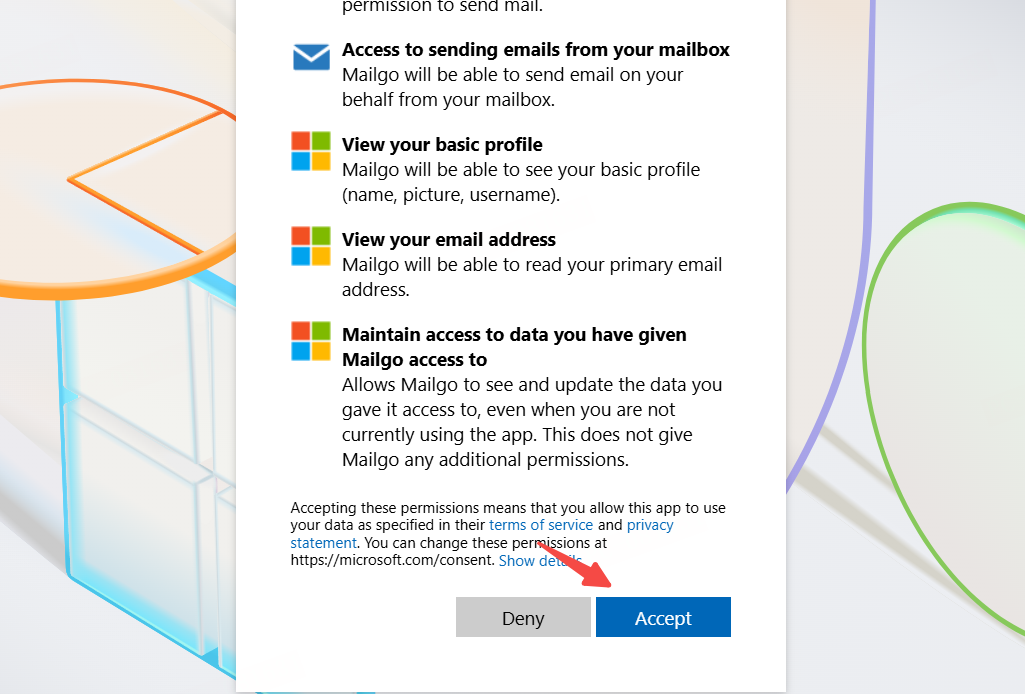
- A new window will appear prompting you to sign in to your Microsoft account
- Choose the account you'd like to connect
- Click “Accept” to authorize LeadsNavi to access your email account
🎉 That’s it!
Your Microsoft 365 / Outlook account is now connected and ready to use in LeadsNavi.
ailgo uses secure OAuth authorization to connect your account—your password is never shared with us.
Related Articles
Connectiing Microsoft Office 365 to LeadsNavi
This guide explains how to securely connect your Microsoft Business Email to Leadsnavi. Using the Microsoft Admin Center, you’ll enable SMTP and IMAP authentication for your user account, ensuring that Leadsnavi can send and receive emails directly ...
Connecting Godaddy Mail to LeadsNavi
This guide walks you through connecting your GoDaddy email account to Leadsnavi. You’ll log in with an administrator account, manage account security settings, and authorize Leadsnavi to access your mailbox using SMTP and IMAP. The process ensures ...
Connecting Yahoo Mail to LeadsNavi
This guide explains how to connect your Yahoo Mail account to Leadsnavi using secure SMTP and IMAP settings. You’ll generate an App Password in your Yahoo Account Security page, enter your credentials, and verify the correct mail server ...
Connecting Ali Enterprise Mail to LeadsNavi
To integrate your AliMail Enterprise Mailbox with LeadsNavi, you need to enable third-party client access, allow POP3/IMAP/SMTP services for employees, and generate a dedicated security password. These configurations ensure a secure and stable email ...
Connecting Feishu Enterprise Mail to LeadsNavi
This guide explains how to connect your Feishu Enterprise Mailbox to Leadsnavi. You’ll enable third-party client access in the Feishu Admin Console, generate a secure app password, and configure SMTP and IMAP protocols for seamless email integration. ...
